
Mermaid is a tool for creating diagrams and charts using a text-based syntax similar to Markdown. In FlowEra, Mermaid is built into the knowledge base editor, allowing you to visualize processes, architecture, dependencies, and data directly within your articles.
What is Mermaid
Mermaid lets you describe diagrams as text that automatically renders as a visual. Instead of manually drawing arrows in a graphical editor, you simply write:
graph TD
    A[Task Created] --> B{Assigned?}
    B -- Yes --> C[In Progress]
    B -- No --> D[Backlog]
    C --> E[Done]
And you get a ready-made flowchart that automatically updates when the text changes.
How to Create a Mermaid Block in the Knowledge Base
Open an article in FlowEra’s knowledge base and type / in the editor — the command menu will open. Select Mermaid or start typing mermaid to filter.
You can also paste code directly using triple backticks with the mermaid type:
```mermaid
graph LR
    A --> B --> C
```
After inserting, the editor automatically renders the diagram in preview mode. Clicking the block opens the code editor.
Supported Diagram Types
FlowEra supports all major Mermaid diagram types:
| Diagram Type | Keyword | Use Case |
|---|---|---|
| Flowcharts | graph, flowchart | Processes, algorithms, pipelines |
| Sequence Diagrams | sequenceDiagram | Component interactions |
| Class Diagrams | classDiagram | Data structures, OOP |
| Gantt Charts | gantt | Task and release planning |
| State Diagrams | stateDiagram-v2 | State machines, lifecycle |
| ER Diagrams | erDiagram | Database schemas |
| Pie Charts | pie | Data distribution |
| Mind Maps | mindmap | Hierarchies and structures |
| Timeline | timeline | Event chronology |
Example: Feature Development Flow
Here’s how you might visualize a typical feature development process:
graph TD
    A[🎯 Feature Idea] --> B[Backlog Task]
    B --> C{Estimate}
    C -- Too Large --> D[Decompose]
    C -- OK --> E[Iteration]
    D --> E
    E --> F[Development]
    F --> G[Code Review]
    G -- Changes Requested --> F
    G -- Approved --> H[QA]
    H -- Bugs Found --> F
    H -- Passed --> I[✅ Deploy]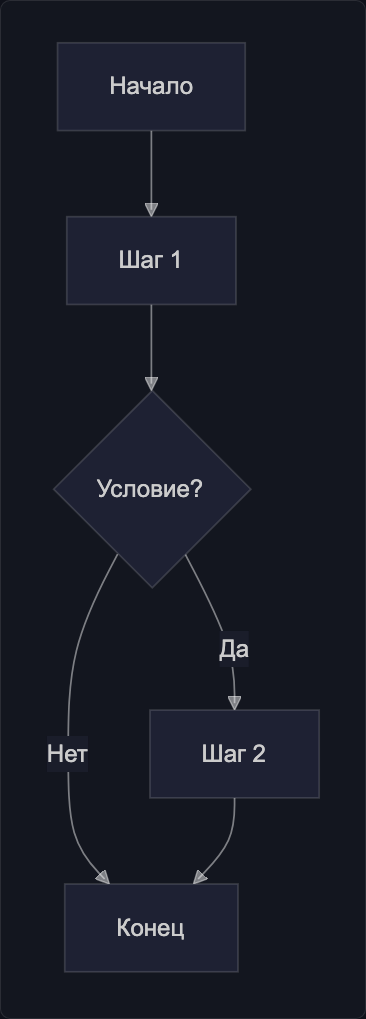
Tips
Use comments to document complex diagrams:
graph TD
    %% This is a comment — not shown in the diagram
    A --> B
Break large diagrams into multiple Mermaid blocks — this improves article readability and makes maintenance easier.
Name nodes meaningfully — use identifiers for references and bracketed text for display:
graph LR
    login[Login Screen] --> validate{Validate Credentials}
    validate -- Success --> dashboard[Dashboard]
    validate -- Error --> login
Next Steps
Start with the most versatile type — flowcharts. They work for most scenarios: process descriptions, pipelines, and decision algorithms.