
FlowEra supports exporting articles in multiple formats and importing from popular documentation systems.
Exporting an Article
Click ⋯ in the open article toolbar → Export. Choose a format:
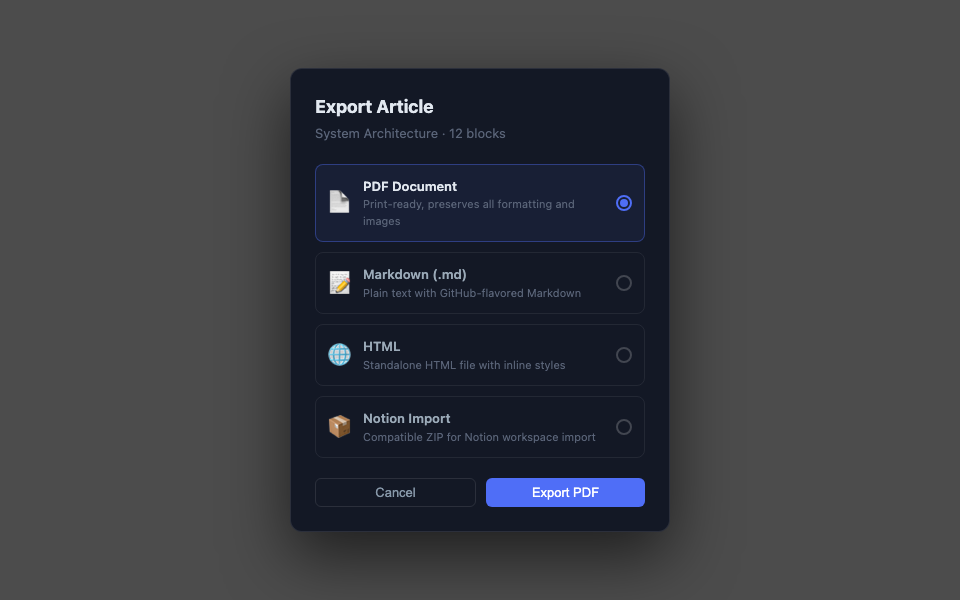
Print-ready document. Preserves:
- All text formatting
- Images
- Tables
- Code blocks (monospace font)
- Math formulas (as images)
- Table of contents (auto-generated from headings)
Toggle blocks are automatically expanded. Callout blocks retain their color.
Markdown (.md)
GitHub-flavored Markdown. Compatible with:
- GitHub / GitLab wiki
- VS Code
- Obsidian, Logseq
- Jekyll, Hugo (static sites)
Images are saved separately in an assets/ folder.
HTML
A standalone HTML file with inline styles. Opens in any browser without additional files.
Notion Import
A ZIP archive compatible with Notion. Import via Notion Settings → Import → FlowEra.
Exporting a Section / Entire KB
To export multiple pages:
- Go to KB Settings → Export
- Select specific pages or «Export all»
- Choose a format
- Download the ZIP archive
Importing
Import from Notion
- In Notion: Settings → Export → Export as Markdown & CSV
- In FlowEra KB: Settings → Import → Upload Notion export ZIP
- Select the target KB section
Converted: pages, databases (as tables), nesting structure.
Import from Confluence
- In Confluence: Space Settings → Export Space → XML
- In FlowEra KB: Settings → Import → Confluence XML
- Page hierarchy is preserved
Import Markdown
Upload a .md file or a ZIP with multiple files. FlowEra converts Markdown into the block structure.
Images in imports are uploaded to FlowEra storage. External image URLs are not automatically replaced — manual review is needed.