
Upload images directly, paste from URL, or drag files into the editor. Images support captions, alignment, and resizing.
Adding an Image
Upload methods:
- Drag & drop — drag a file from your file manager directly into the editor
- Slash menu —
/image→ upload a file or enter a URL - Paste — copy an image and press
⌘V - URL — paste a direct image link
Supported Formats
- Raster: PNG, JPG, JPEG, GIF, WebP
- Vector: SVG
- Animated: GIF, WebP
Maximum file size: 20 MB.
Image Settings
Click an inserted image — a control panel appears:
| Action | How |
|---|---|
| Resize | Drag a corner or edge |
| Align | Choose Left / Center / Right in the toolbar |
| Add caption | Click below the image |
| Open original | Click the image in read mode |
| Replace | Right-click → Replace image |
| Delete | Right-click → Delete, or select + Delete |
Captions
A caption is the text shown below the image to readers. Add one by clicking below the image or via right-click → Add caption.
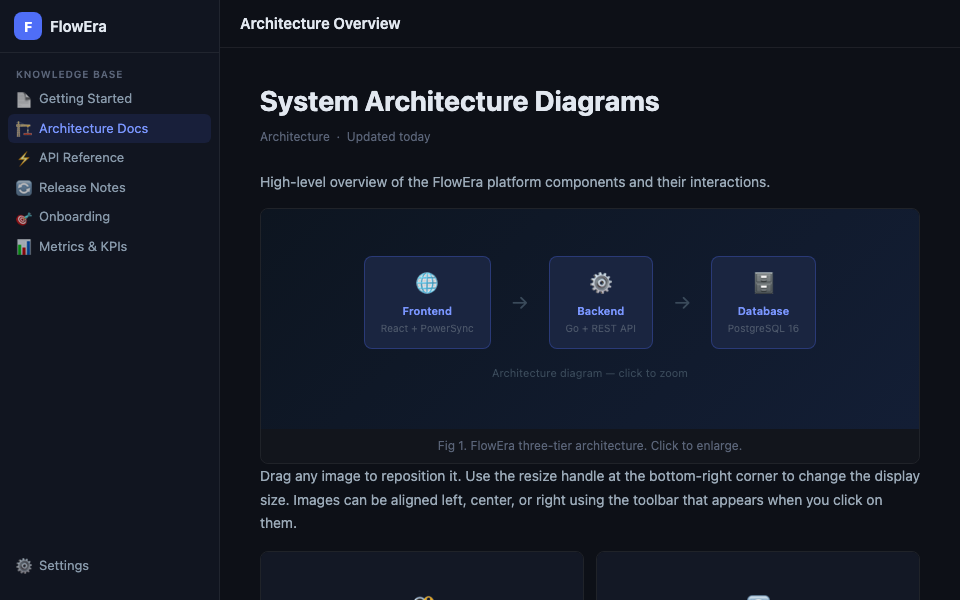
[architecture diagram]
Fig. 1. FlowEra three-tier architecture. Click to enlarge.
Lightbox (Zoom)
In read mode, clicking an image opens it in a lightbox — displayed on a dark full-screen overlay. Close with: click the backdrop, the ✕ button, or Esc.
Side-by-Side Images
To place multiple images in a row, use a borderless table:
Images are stored in FlowEra cloud storage and accessible to all workspace members.