
The slash menu is the fastest way to insert any block type using just the keyboard. Press / on an empty line to open it.
How to Open
Place the cursor on a new empty line and press /. A searchable command list appears. Start typing the block name to filter results.
/ → opens the menu
/co → shows "Code Block", "Callout"
/ta → shows "Table", "Task List"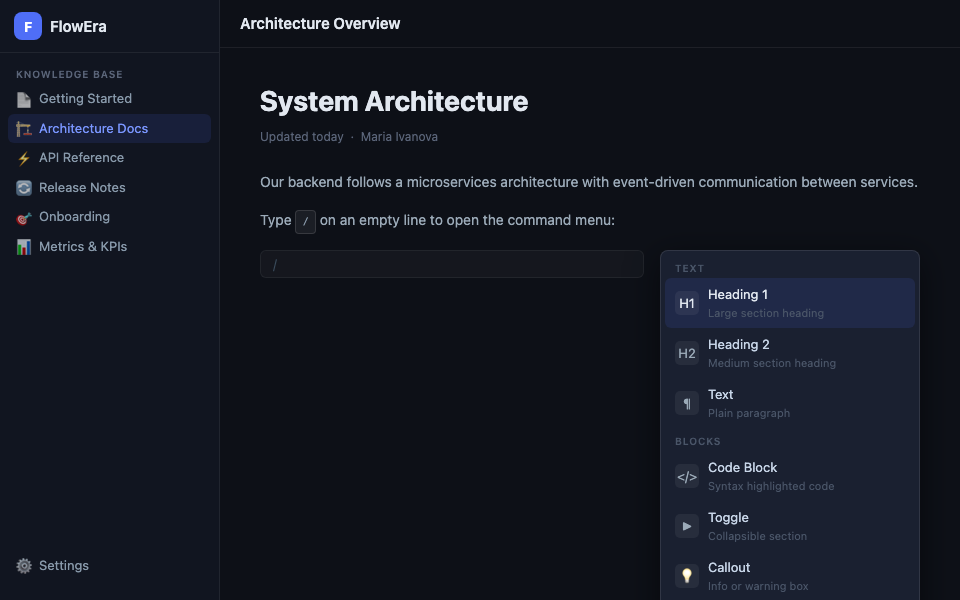
Menu Navigation
| Action | Key |
|---|---|
| Move down | ↓ |
| Move up | ↑ |
| Insert block | Enter |
| Close without action | Esc |
Text Blocks
| Command | Result |
|---|---|
/h1 or # | Heading H1 |
/h2 or ## | Heading H2 |
/h3 or ### | Heading H3 |
/p | Paragraph |
/quote | Blockquote |
/bullet or - | Bulleted list |
/numbered or 1. | Numbered list |
/task | Task list with checkboxes |
Content Blocks
| Command | Result |
|---|---|
/code or ``` | Code block with highlighting |
/toggle or > | Toggle block |
/callout | Callout block |
/table | Table |
/image | Upload image |
/divider | Horizontal divider |
Special Blocks
| Command | Result |
|---|---|
/math | Math formula (LaTeX) |
/mermaid | Mermaid diagram |
/embed | Embedded FlowEra widget |
/mention | Mention a team member |
/date | Insert date |
Markdown Shortcuts
Many blocks can be created without opening the menu — using Markdown syntax directly:
# Heading    → H1 (press Space after #)
## Heading   → H2
- Item       → bulleted list
1. Item      → numbered list
> Quote      → blockquote
Markdown shortcuts only trigger at the beginning of a line when you press Space after the character.